Using Zoom
Zoom allows you to participate in a meeting with video and audio using a PC, tablet or smartphone connected to the internet. It has numerous facilities to help with presentations, sharing information and voting. Most people will just want to see each other and talk. Zoom is very easy to use like this, but you first need to download the Zoom app and install it.
Necessary Facilities
You will need a computing device connected to the internet. This can be a phone, tablet, laptop or desktop. It's easier if you have a device with built-in camera, microphone and speaker and modern devices will include these as standard.
Setting up the Zoom App
While the principle is the same, the details of how to do this will differ according to the device you are using. Click on the appropriate tile below to see the instructions for your device.
Windows
PCs
Click or tap to show or hide the instructions
Android
tablets and phones
Click or tap to show or hide the instructions
Apple
tablets and phones
Click or tap to show or hide the instructions
Apple
Mac PCs
Click or tap to show or hide the instructions
Instructions for Windows PCs
On your device goto your internet browser. This is the application you use to look at information on the internet - shopping, email, Google, etc. The screen shots below are using Google Chrome as that is one of the popular browsers. There are several browsers and each one is slightly different, so if you are using a different one, your screens will look slightly different, but the principles are the same.
In the address bar type in
www.Zoom.com
and press Enter.
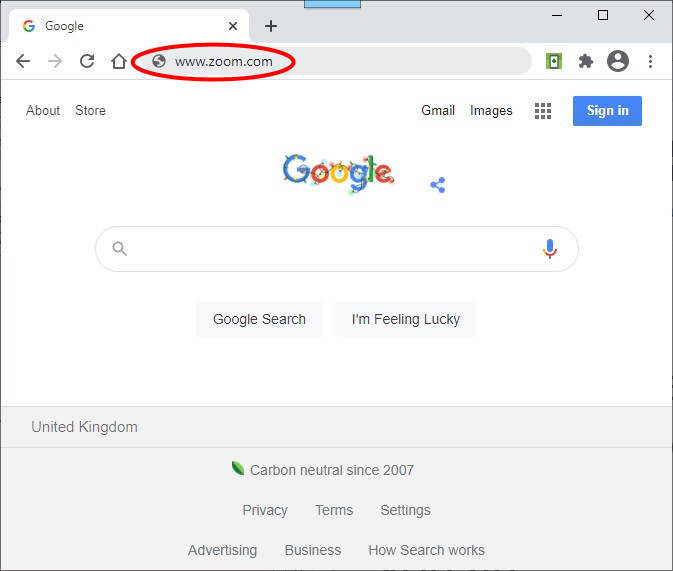
This should take you to the Zoom home page.
 .
.
To just participate in Zoom meetings you don't need an account or to sign up/in.
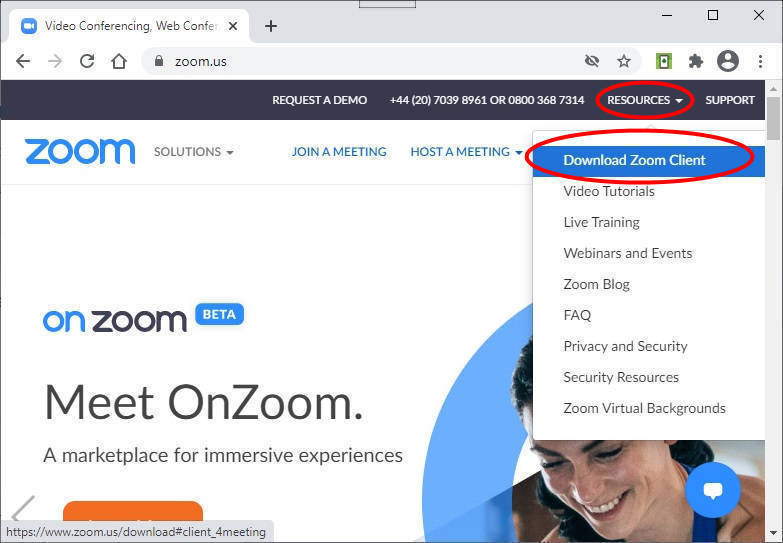
In the black menu bar click on RESOURCES and in the drop down menu click on Download Zoom Client
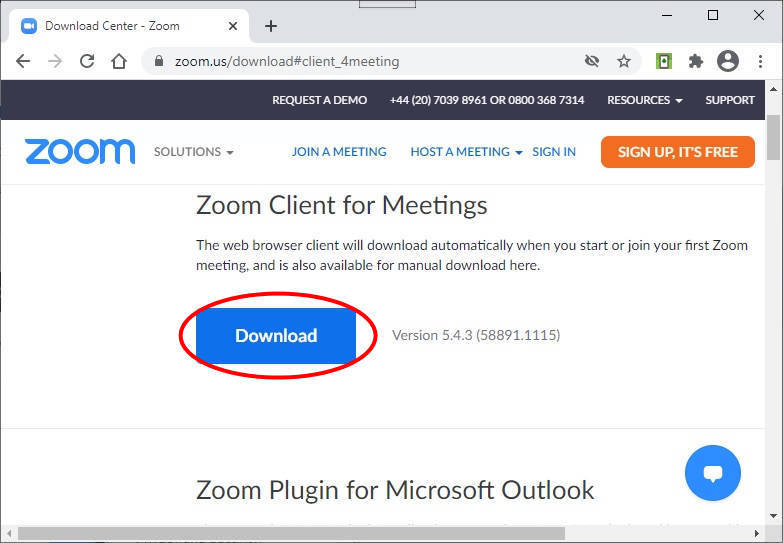
You will now see the download page.
 .
.
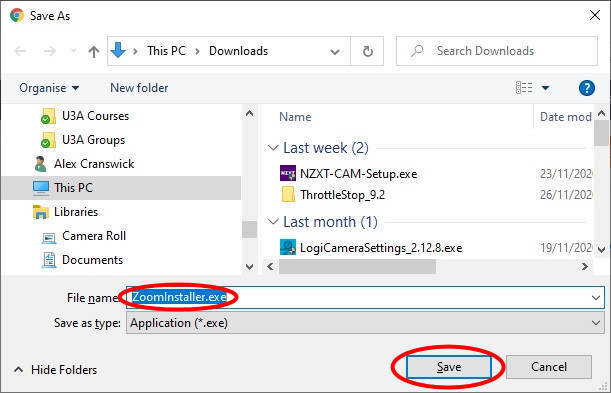
Click on Download in the middle of the page. A standard file save menu will now pop up. The filename should already be filled in and you just need to click on Save
 .
.
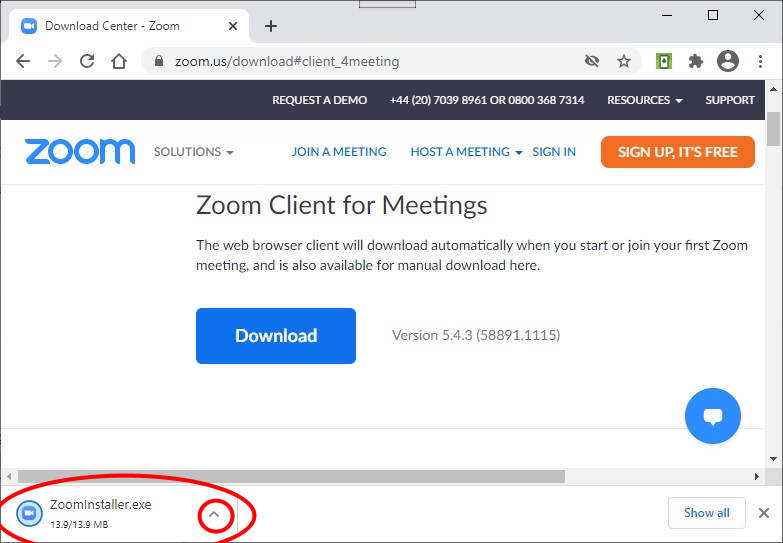
You will now see the download progress in the bottom left corner of the page.
 .
.
When the download is finished, you will see the filename as highlighted above. Click on the small up-arrow to the right of the filename.
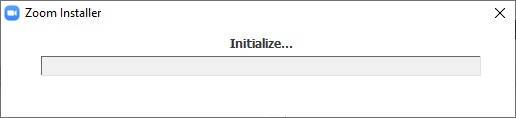
In the pop-up menu, you will see an option to run the file. Click on the run option and the installation will begin, showing the progress bar below.
 .
.
The grey bar will become green from left to right as the installation progresses.
Once the installation is shown as complete, you have installed Zoom.
Instructions for Android Tablets and Phones
On your device click on the Playstore App. On the search screen choose Apps and type Zoom.com in the search bar. This will take you to a choice of apps related to Zoom.
Look for the one that says Zoom cloud meetings and click on it. There is no charge for this app, it is the free version and you do not need an account.
You will now see the download the app screen with an Install button as shown below.
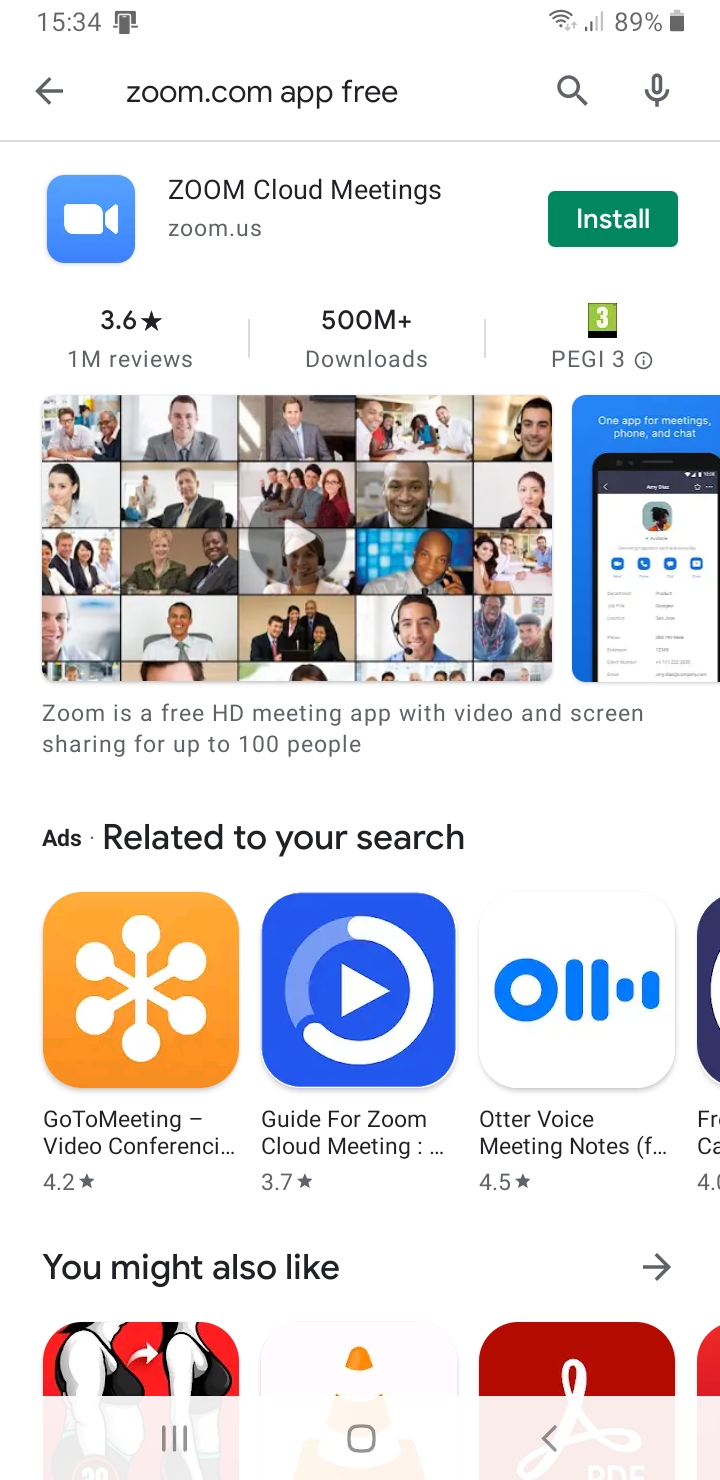
Click on the Install button. You will see the download progress as a percentage in an animated circle. The screen will show the app as installing. When it has completed, it will change to installed and there will be an Open button as shown below.
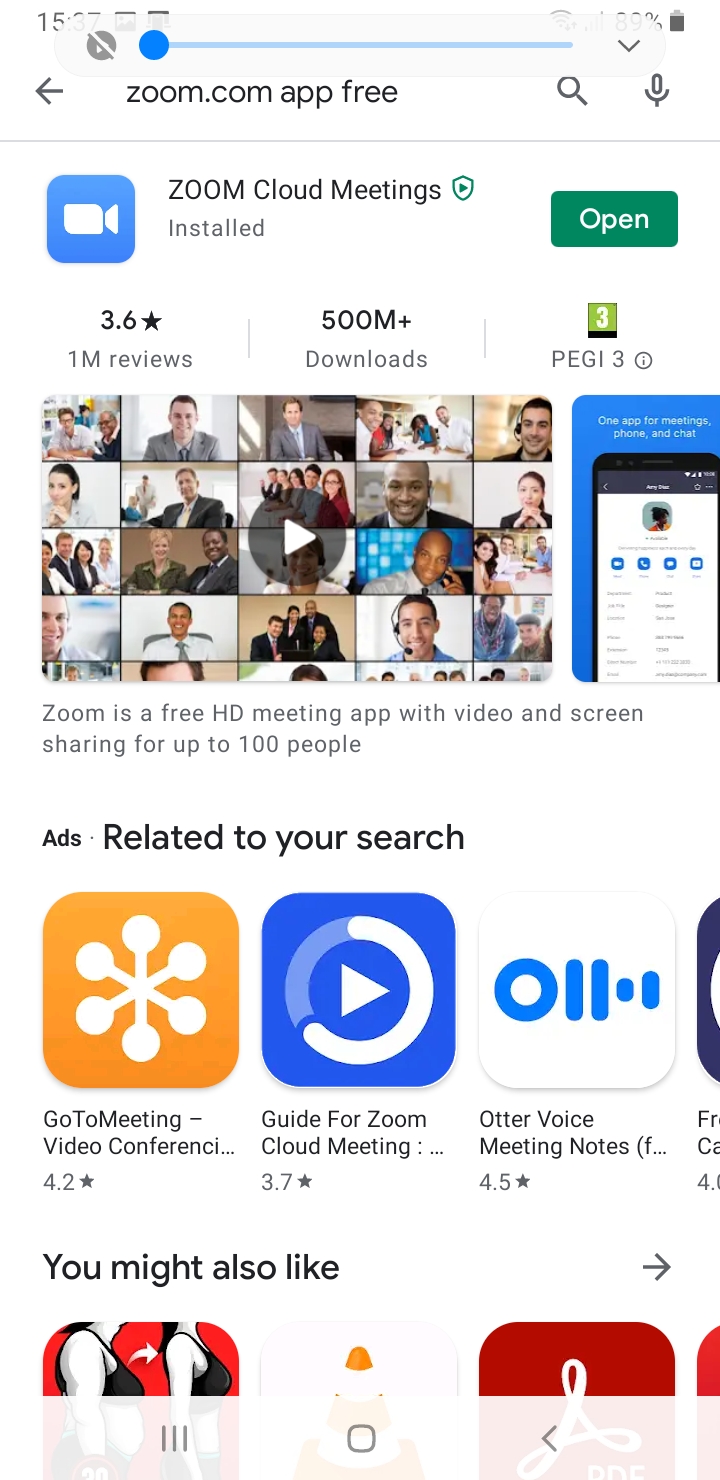
Click on this and the app will open. If the Zoom app opens successfully then the installation is complete and you may close the app.
Instructions for Apple Tablets and Phones
On your device click on the App Store App. In the search screen type Zoom in the search bar. This will take you to a choice of apps related to Zoom.
Look for the one that says Zoom cloud meetings and click on it. There is no charge for this app, it is the free version and you do not need an account.
You will now see the screen below with the download button GET.
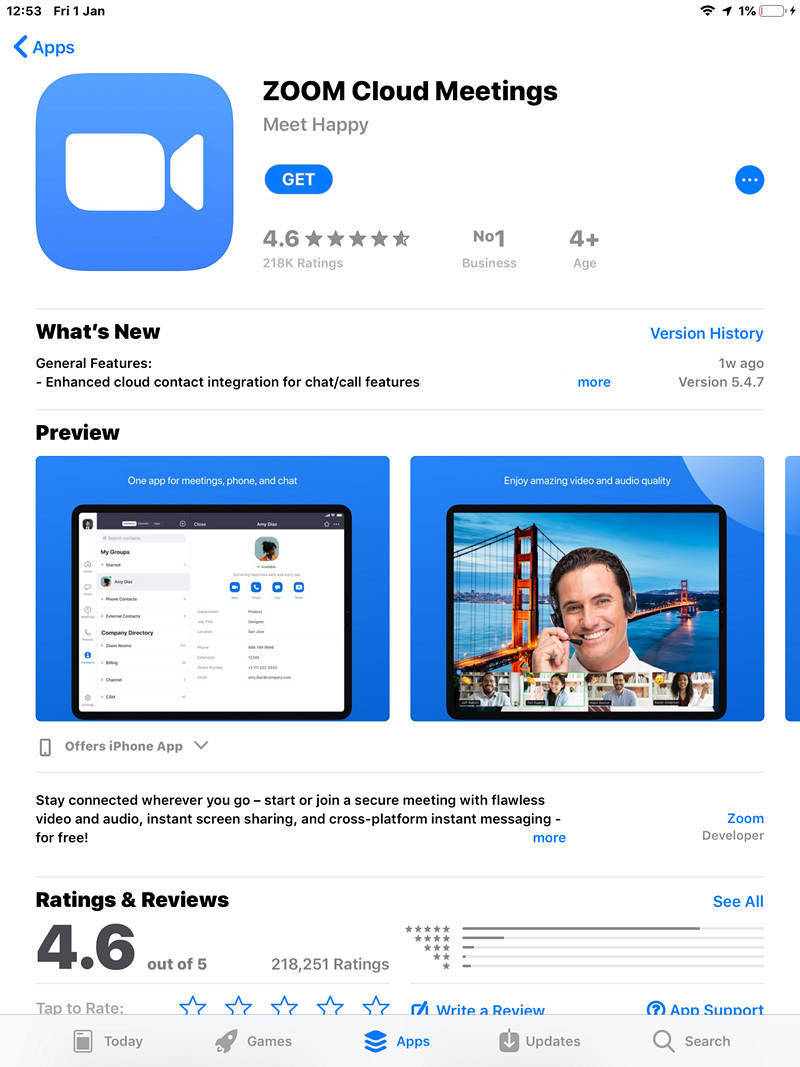
Click on the download button GET. You will see the download progress as an animated circle. When the download has completed, GET will change to an OPEN button as shown below.
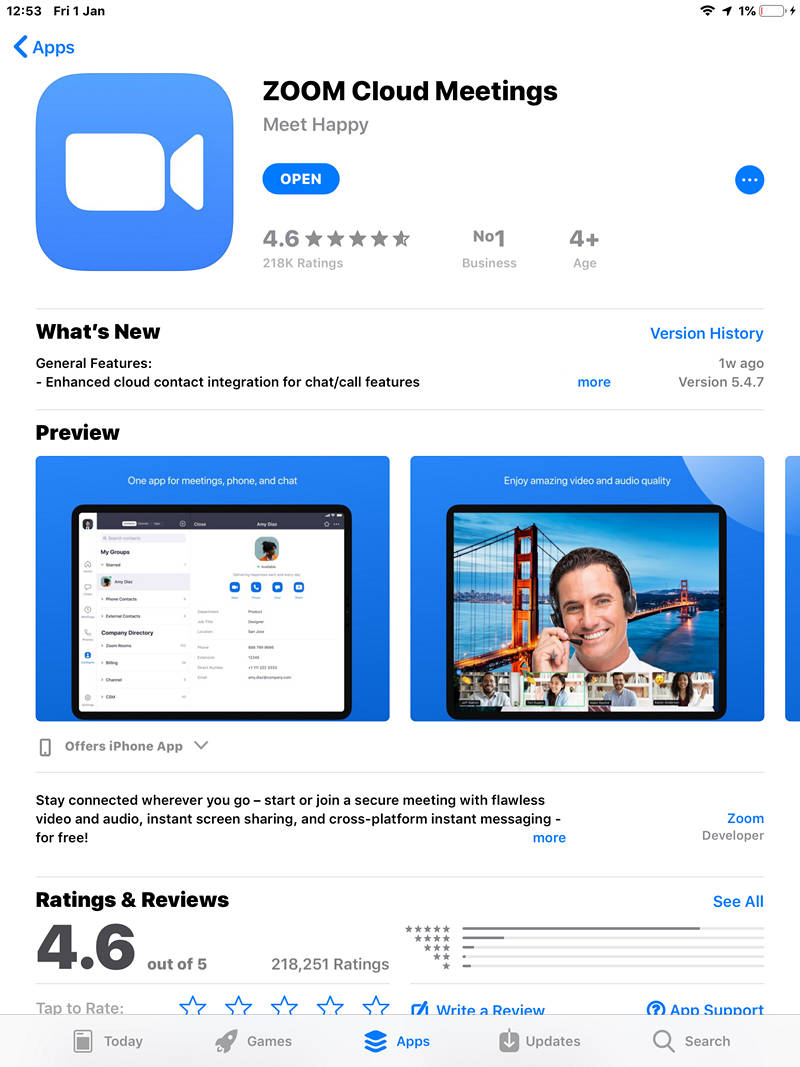
Click on this and the app will open. If the Zoom app opens successfully then the installation is complete and you may close the app.
Instructions for Apple Mac PCs
On your device goto your internet browser. This is the application you use to look at information on the internet - shopping, email, Google, etc. The screen shots below are using Google Chrome as that is one of the popular browsers. There are several browsers and each one is slightly different, so if you are using a different one, your screens will look slightly different, but the principles are the same.
In the address bar type in
www.Zoom.com
and press Enter. This should take you to the Zoom home page.
To just participate in Zoom meetings you don't need an account or to sign up/in.
In the black menu bar click on RESOURCES and in the drop down menu click on Download Zoom Client
You will now see the download page.
.
Click on Download in the middle of the page. A standard file save menu will now pop up. The filename should already be filled in and you just need to click on Save
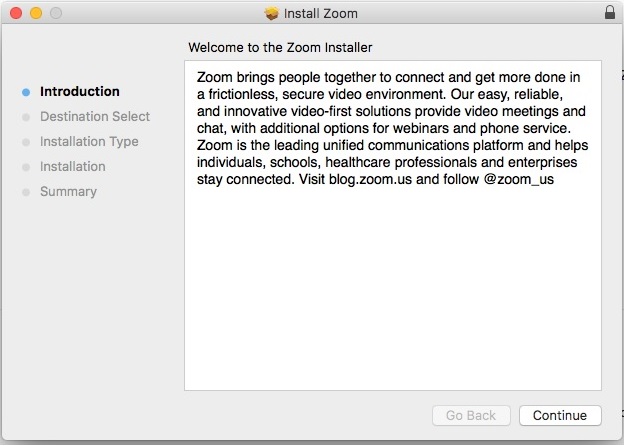 .
.
You now need to choose how the software will be installed for users of this computer. Here it is being installed for all users.
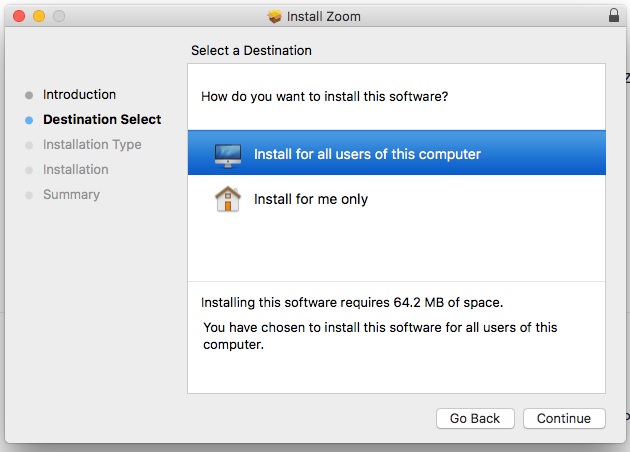 .
.
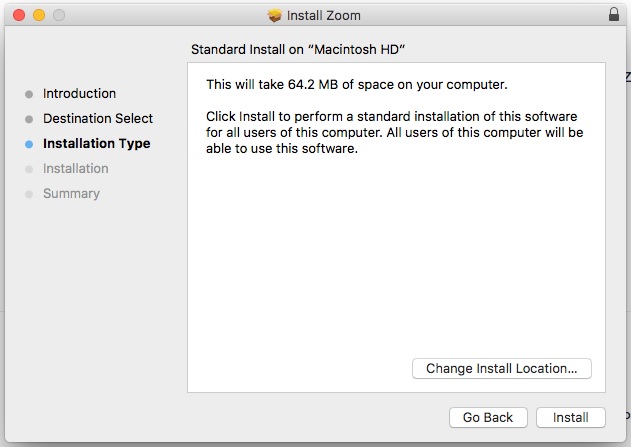
You will then see a confirmation screen. To proceed click on Install.
 .
.
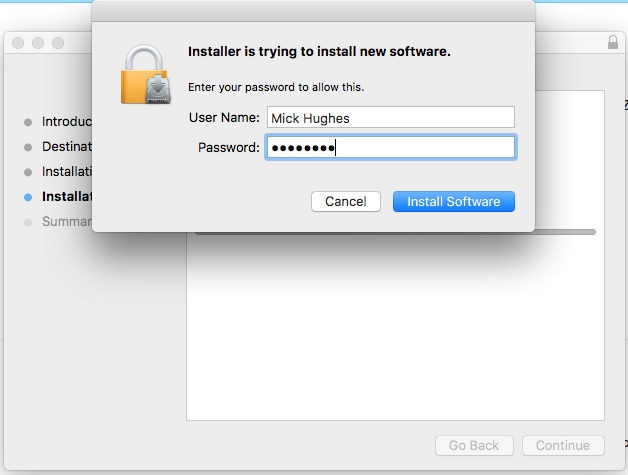
You are now asked for your password to allow the installation to proceed.
 .
.
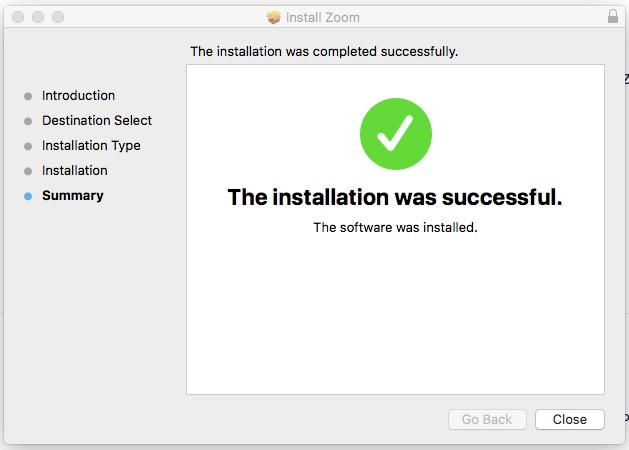
Click on Install Software to proceed with the installation. When the installation is complete, you will see,
 .
.
There is no charge for this app, it is the free version. You do not need an account to use Zoom when you are joining an existing meeting.
Practice joing the AGM
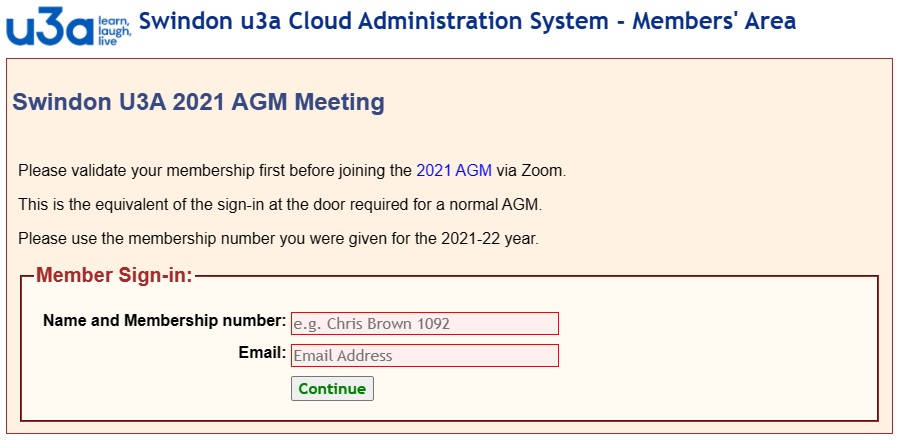
You can practice attending the AGM by clicking here. You will see the screen below asking for verification of your membership,
 .
.
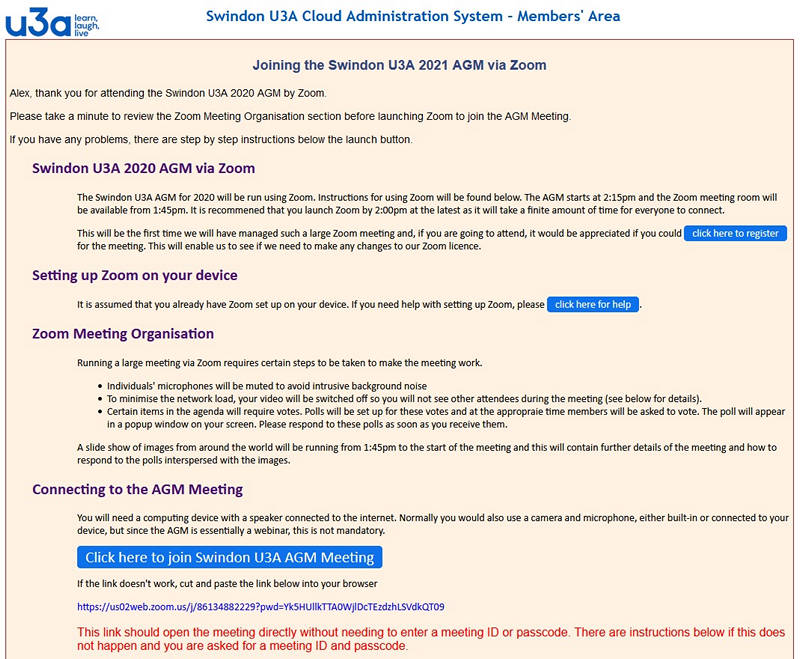
When you have entered your details, click on Continue. If there are other members at your address, you will see an additional screen where you will be invited to sign them in for the meeting. There will be another Continue in this screen. Clicking on Continue you will see,
 .
.
Use the button Click here to join Swindon U3A AGM Meeting to join the meeting.
You should enter the Zoom meeting directly and see the message "Waiting for the host to start the meeting"
To access the AGM on the day of the meeting, access the Swindon U3A website and click on the tile headed Join the AGM via Zoom as shown below - centre pane .
 .
.